
HUB 2 - USER MANUAL
HUB 2 USER GUIDE Ajax is a wireless security system that protects against intrusion, fire, and flood; allowing users to control alarm devices directly from a mobile application.

HUB 2 USER GUIDE
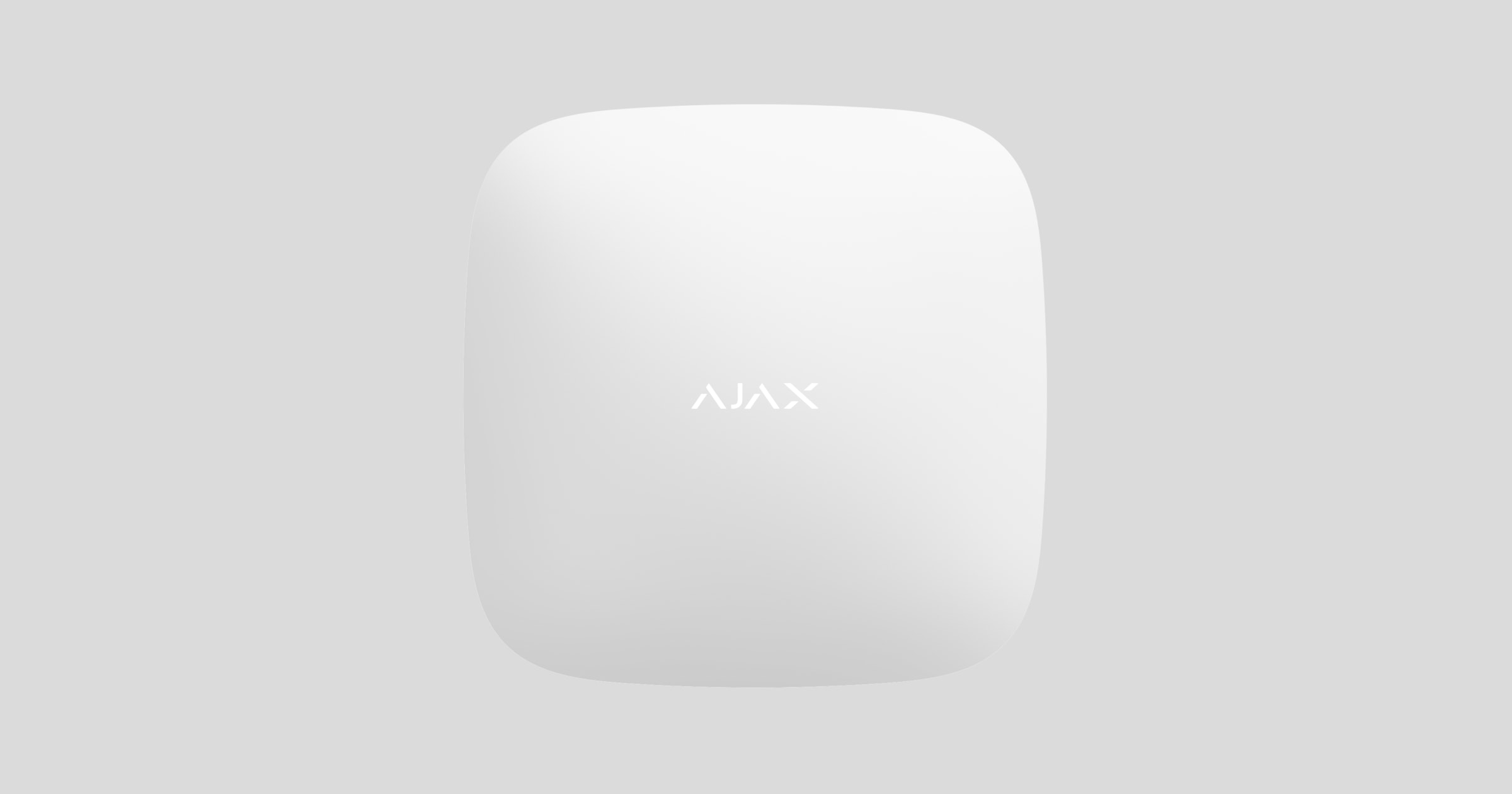
Ajax is a wireless security system that protects against intrusion , fire , and flooding , and allows users to control electrical devices directly from a mobile app . The system reacts immediately to threats, notifying you and the security company of all incidents.
Hub 2 represents the smart security system control panel supporting sensor devices with intrusion verification capabilities. As a key element of the security system, it controls the operation of Ajax devices and, in the event of a threat, immediately transmits an alarm signal notifying the owner and the central monitoring station of the incident.
Hub 2 requires an internet connection to access the Ajax cloud service for system configuration and management from anywhere in the world via Ajax applications, communication with alarms and events, and updates to the Malevich OS firmware. The Ajax Cloud service is hosted on Amazon Web Services. All data is stored in a multi-level secure system, and communication with the hub occurs through an encrypted channel.
To communicate with the Ajax Cloud service, the center uses a wired internet connection (Ethernet) and two 2G SIM cards. You should use all communication channels to ensure a more reliable connection with the Ajax Cloud service and to protect against connection failures from one of the service providers.
Users can manage the security system and respond promptly to alerts and notifications using applications designed for iPhones and smartphones running Android, macOS, and Windows. The system notifies users of alerts and other events via push notifications, SMS, and phone calls.
Functional factors
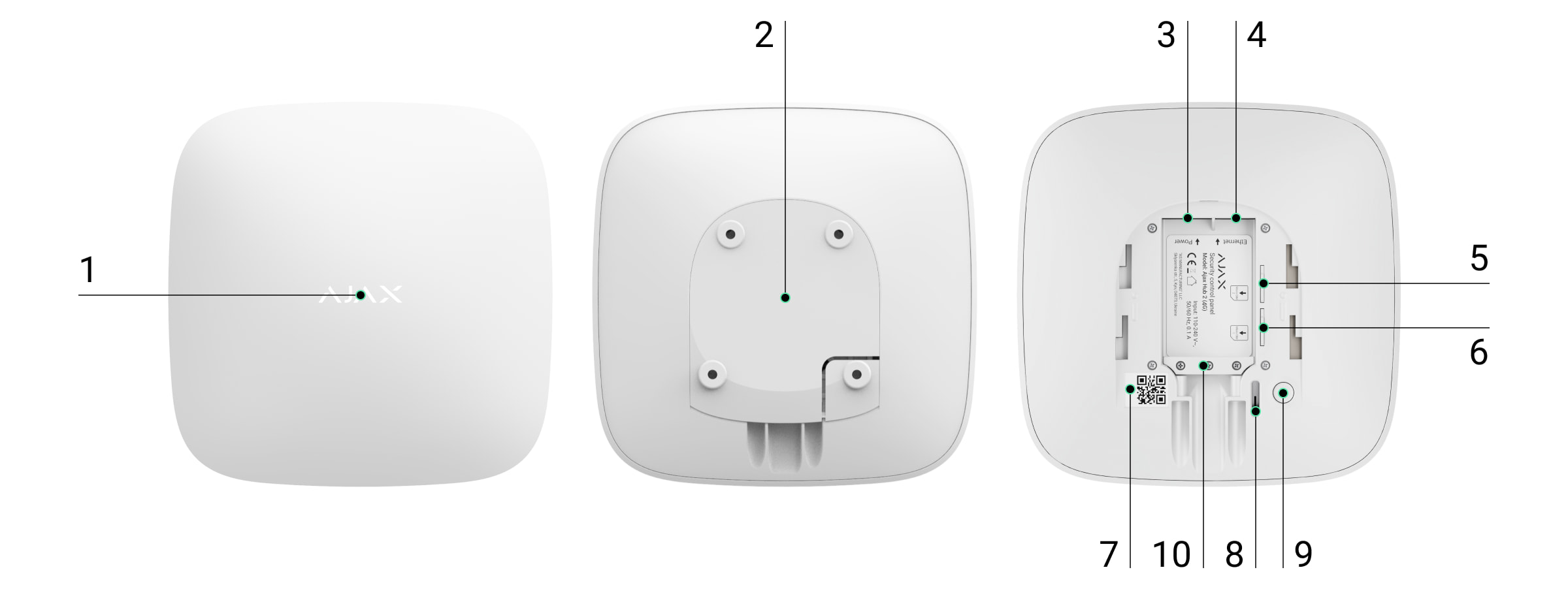
-
The Ajax logo has indicator lights.
-
SmartBracket hanging panel (slide down firmly to open; the perforated section is necessary to activate the vandal-proof mechanism while attempting to tear the center from the surface. Do not break it!)
-
Electrical cable connector
-
Ethernet cable connector
-
Slot for installing a micro-SIM card.
-
Slot for installing a micro-SIM card.
-
QR code
-
Vandal-proof switch
-
Power button
How Hub 2 works
The Hub collects information related to the operation of connected devices in encrypted form, analyzes the data, and, in the event of an alarm, notifies the system owner of the danger in less than a second and transmits the notification directly to the security company's central monitoring station.
To communicate with devices, monitor their activity, and respond quickly to threats, Hub 2 utilizes Jeweler 's wireless technology. For visual data transmission, Hub 2 uses the Ajax Wings wireless protocol. It is a high-speed protocol based on Jeweler technology. Wings also uses dedicated antennas to improve channel reliability.
Hub 2 Signals

The logo has an indicator light that can illuminate in red, white, or blue depending on the device's status.
|
Status |
Indicator light |
|
Ethernet and at least one SIM card connected. |
White light |
|
A single communication channel is connected. |
Green light |
|
The center is not connected to the internet or to the Ajax Cloud service. |
Red light |
|
No electricity |
The light stays on for 3 minutes, then flashes every 20 seconds. The indicator color depends on the number of communication channels connected. |
Ajax account
The security system is configured and managed through Ajax applications designed for iPhones and smartphones running Android, macOS, and Windows.
To configure the system, install the Ajax application and register an account. We recommend using the Ajax Security System application to manage one or more centers. If you plan to manage more than one hundred centers, we recommend using the Ajax PRO: Tool for Engineers application (for iPhone and Android smartphones) or Ajax PRO Desktop (for Windows and macOS desktops and laptops). You will need to verify your email address and phone number as part of the process. Note that you can use your phone number and email address to create just one Ajax account! You don't need to create a new account for each center – you can add multiple centers to one account.
An account containing information related to the added centers is uploaded to the cloud-based Ajax Cloud service in encrypted form.
Security requirements
When installing and operating Hub 2, please adhere to general electrical safety rules for the use of electrical equipment as well as the requirements of electrical safety regulations.
It is strictly forbidden to disassemble the device while it is connected to the power source! Furthermore, do not use the device if the power cord is damaged.
Central connection
-
Remove the center console cover by sliding it down firmly. Do not damage the perforated section as it is necessary to activate the anti-vandalism feature in an attempt to hack the center console!

-
Connect the power cord and Ethernet cable to their respective connectors.
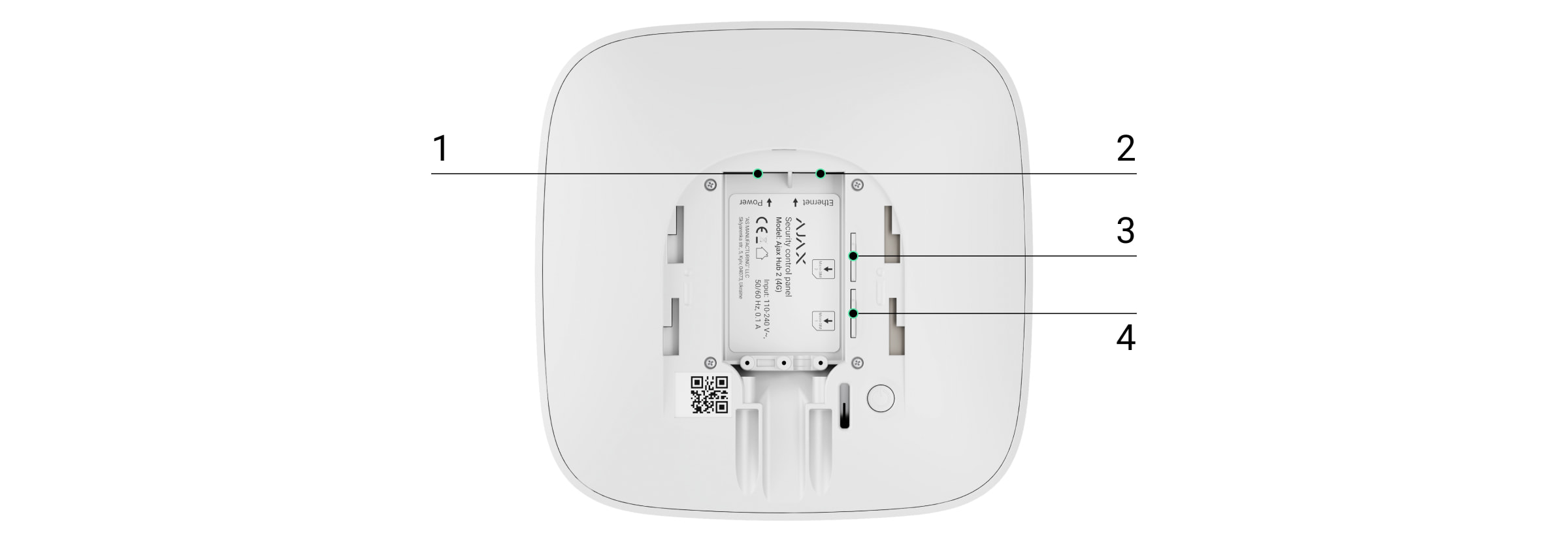
1 - Electrical outlet
2 - Ethernet sockets
3, 4 - Slots for inserting a micro-SIM card
-
-
Press and hold the power button for 3 seconds until the Ajax logo lights up. The hub needs up to 2 minutes to update to the latest firmware version and access the internet. A green or white logo indicates that the hub is running and connected to the Ajax Cloud service.
-
If the Ethernet connection isn't established automatically, disable MAC address filtering and enable DHCP in your router settings—the hub will automatically receive an IP address. Then you can assign a static IP address to the hub in your Ajax application.
-
To connect via GSM, you need a micro-SIM card issued by your mobile operator with a disabled PIN (you can disable it using your mobile phone) and sufficient balance in your account to pay for the mobile operator's services. If the hub is not connected via GSM, use Ethernet to configure your network operator settings (roaming settings, APN access point, username and password). To find out your mobile operator settings, contact your service provider's support.
Add a hub to the Ajax application.
-
Import the Ajax application. Ensure it is granted access to all required system functions, especially permission to display notifications. If you are using an Android smartphone, we recommend using the Push notification configuration guide .
-
Log in to your account and click Add a Hub. Choose a suitable method, either manually or using the step-by-step guide. If you are configuring the system for the first time, we recommend using the step-by-step guide.
-
Specify the name of the center and scan the QR code located under the lid, or enter it manually.
-
Wait until the hub addition process is complete. Once linked, the hub will be displayed in the Devices tab.
Security system users
When you add a hub to your account, you become an administrator of that device. A single hub can contain up to 50 users/administrators. Administrators invite users to use the security system and define their permissions.
Changing the security system administrator and removing him/her from the hub will not cause the devices connected to it to reset.
Ajax Security System User Permissions
Central installation
Before connecting the device to the hub, create at least one room.
The event description for each device will be specified in the room where the device is located:
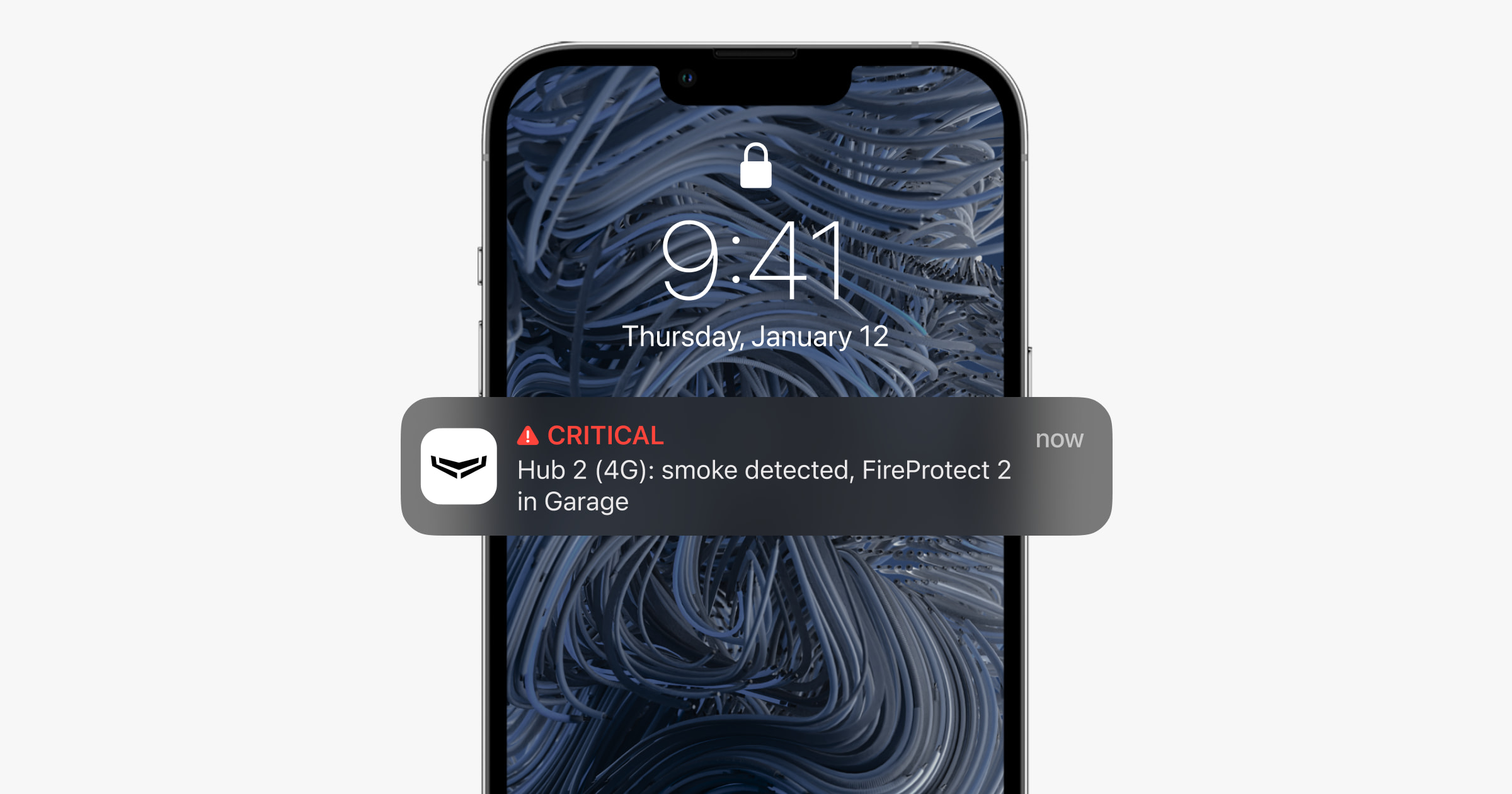
To create a room, go to the Rooms tab and click Add Room. Assign it a name and, if necessary, attach (or create) a photo – it will be easy to find a room in the list.
To delete a room or change its avatar or name, go to room settings (click the gear icon).
Connect the touch screen and the device.
When adding a hub using the step-by-step guide, you'll be prompted to add devices that will protect the facility. But you can decline and return to this step later.
To add a device to the hub:
-
In the Ajax application, open the room and select Add device.
-
Name the device, scan the device's QR code (or enter it manually), and select a group (if group mode is enabled).
-
Click Add - the countdown to adding the device will begin.
-
Turn on the device during the countdown, and the device's LED will light up once. To link the device to the control center, the device must be located within the control center's radio communication range (at the same secured location).
If the connection fails, turn off the device for 5 seconds and try again.
Video tracking
You can connect third-party cameras to the security system: seamless integration with Dahua, Hikvision, and Safire IP cameras and video cameras already deployed, and you can also connect third-party cameras that support the RTSP protocol. You can connect up to 25 video surveillance devices to the system.
How to add a Dahua camera or video recorder to the hub.
How to add Hikvision/Safire cameras or video cameras to the hub.
How to add third-party cameras to the hub.
Central installation
To access the central settings, select it from the list of devices and click the gear icon.
Customization parameters:
-
Users
-
Ethernet
-
Mobile
-
Geofence
-
Groups
-
Inspect the area where the discovery was made.
-
wizard
-
Service
-
Monitoring station
-
PRO
-
Security company
-
User manual
Users - Set up security systems for users. Define who has access to your security system, the permissions granted to users, and how the security system notifies them of events.
How does the Ajax security system notify about alerts?
How to add new users to the center
Ethernet - settings for wired internet connection.
Cellular - enables/disables mobile connection, establishes connection, and checks account balance.
Geofence - configures prompts to activate/deactivate the security system when a specific area is breached. The user's location is determined by the smartphone's GPS module.
What are geofences and how do they work?
Group - configure group mode.
The capabilities that team mode provides:
-
Manage the security of individual facilities or groups of sensor devices.
The office was secured while the cleaner worked in the kitchen. -
Differentiate access rights to administrative tools for different security modes.
Marketing staff do not have access to the law office.
Hub OS Malevich 2.6: A new level of security.
Detection area test - check the detection area of the sensors connected to the control panel. This test allows you to determine the distance at which the sensors register an alarm.
What is detection area testing?
Jeweller - configures the polling times for the central hub and connected devices. The setting determines how frequently the central hub exchanges data with the devices and the level of communication loss detected.
-
The Ping Interval detector - the polling frequency of devices connected via the hub, is set within the range of 12 to 300 seconds (default, 36 seconds).
-
The number of undelivered packets used to identify connection errors - a packet counter (defaults to 30 packets).
The time before sending a message regarding the loss of communication between the center and the device is calculated using the following formula:
Voting period * (number of unsubmitted packets + 1 correction packet)
The shorter the polling time, the faster the central control center receives information about events from connected devices and the central command receiving device; however, this reduces the operating time of the devices from their batteries. Meanwhile, information about an alarm or vandalism is communicated immediately.
Please note that there is a time limit on the maximum number of devices that can be connected:
|
About |
Connection limits |
|
12 seconds |
39 devices |
|
24 seconds |
79 devices |
|
36 seconds or more |
100 devices |
Only 10 sirens can be connected to the control panel under any given configuration!
Service - a group of central service settings.
Set up the connection for the Hub and Ajax Cloud services:
-
Ping Interval Server. The polling frequency of the Ajax Cloud service is based on the hub and is set within the range of 10 to 300 seconds. The suggested and default value is 60 seconds.
-
Connection error alert delay. This is a necessary delay to reduce the risk of false alarms related to lost connections with the Ajax Cloud service. It is triggered after 3 unsuccessful server center probes. The delay can be set between 30 and 600 seconds. The recommended and default value is 300 s.
The time it takes to generate a notification regarding a loss of communication between the hub and the Ajax Cloud service is calculated using the following formula:
(Voting period * 4) + Time filter
With default settings, the Ajax Cloud service reports a loss of centering after 7 minutes:
(30 seconds * 4) + 300 seconds = 7 minutes
How fast does the connection between the hub and the Ajax Cloud service get lost?
-
LED Brightness. Adjust the brightness of the LEDs in the center logo. Set it to a range from 1 to 10 (default value is 10).
-
System integrity check. When the function is enabled, the hub checks the status of all devices before activation: battery charging, tampering, connection. If a problem is detected during activation, the hub does not activate the activation mode and issues a warning.
-
Enable activation (optional, only active after System integrity check is turned on). When the function is activated, the security system can be maintained even in the event of an incident.
To protect a compromised security system using Ajax:
-
Activate Trigger mode - you will receive an appropriate alert with a list of problems.
-
Confirm the activation of the security system by pressing Arm.
To confirm activation of the Activation mode in a security system experiencing malfunctions when using the KeyPad or SpaceControl fob:
-
Activate the Activation mode - you will receive a rejection.
-
Confirm system activation by reactivating the Activation mode within 30 seconds.
What is system integrity testing?
-
Automatic software updates. Configure OS Malevich firmware updates to work automatically. When the hub is powered on, it will automatically update its firmware if a new version is available.
How to update the Malevich operating system.
Configuring FireProtect and FireProtect Plus fire detectors.
-
FireProtect alarms are interconnected. This function activates the integrated siren of all fire detectors if at least one of them detects a threat.
What are the interconnected FireProtect alarms?
-
Ignore the first alarm. The snooze feature will resend the alarm to check for the presence of smoke.
The following are the optional features:
-
A sensor detects and triggers a smoke alarm.
-
The 30-second stopwatch built into the sensor device is activated.
-
If the sensor still detects a threat after 30 seconds, an alarm will be sent to the control center.
This setting is recommended if there are potential sources of false alarms within the facility, for example, if the sensor is installed in a location where airflow is likely to occur.
Settings for collecting and storing Ajax security system reports.
-
Central log. You can turn off logging or select a transmission channel:
-
Ethernet
-
Wi-Fi (only available in Hub Plus )
-
No - login is disabled.
-
We do not recommend disabling logging as this information can be helpful in case of system errors!
Set up alarm activation
-
If the hub or detector is open. When the function is activated, the hub will trigger the connected alarm siren if the hub body, detector, or any Ajax device is open.
-
If an alarm button is pressed in the app, when the function is activated, the hub will trigger the connected alarm siren if the panic button is pressed in the Ajax app.
Disable the alarm siren response by pressing the panic button on the SpaceControl main fob in the main fob settings (Devices SpaceControl Settings).
Monitoring station - configured to connect directly to the security company's central monitoring station.
Events and alerts can be transmitted to the security company's central monitoring station without these settings.
PRO - settings for PRO users (installers and representatives of security companies) of the security system. Define who has access to your security system, the permissions granted to users, and how the security system notifies them of events.
Security companies - a list of security companies in your area. The area is determined by GPS data or your smartphone's area settings.
User manual - open the Hub 2 user manual.
Unpairing the hub removes your account from the hub. Meanwhile, all settings and linked touch devices are saved.
Reset center settings
Reset the hub to factory settings:
-
Turn on the hub if it's turned off.
-
Remove all users and installers from the center.
-
Hold down the power button for 30 seconds - the Ajax logo on the hub will start flashing red.
-
Remove the center from your account.
Event alerts and warnings
The Ajax security system notifies users of alerts and events through three types of notifications: push notifications, SMS, and phone calls. Alert settings can only be changed for registered users.
|
Types of events |
Purpose |
Types of notifications |
|
Problem |
|
Push notifications message |
|
alarm clock |
|
The calls Push notifications message |
|
Event |
|
Push notifications message |
|
Activate/deactivate |
|
Push notifications message |
How Ajax notifies users about alerts.
Connect with a security company.
A list of organizations connected to the central monitoring stations of these organizations can be found in the security company menu (Security Company Hub Settings):
Contact a representative of the service provider in your city and arrange a connection.
Connection to the Central Monitoring Station (CMS) is implemented via the Contact ID or SIA protocol.
Bonding
Before installing the center, ensure that you have chosen the optimal location and that it complies with the requirements of these guidelines! It is desirable for the centers to be hidden from prying eyes.
Ensure that the hub has a stable signal strength for all connected devices. If the signal strength is low (a single bar), we cannot guarantee the stable operation of the security system. Take potential measures to improve signal quality! At the very least, relocate the hub, as even a 20 cm repositioning can significantly improve signal reception.
If low or unstable signal strength is reported after moving, use the ReX radio range extender .
When installing and operating equipment, follow general electrical safety rules for the use of electrical equipment as well as the requirements of electrical safety regulations.
Central setup:
-
Secure the SmartBracket panel using the included screws. When using other screws, ensure they do not damage or deform the panel.
-
Double-sided tape should not be used for attachment. This could cause a hub to fall and the device to be damaged by the impact.
-
Attach the hub to the mounting board. After installation, check the spoofing status in the Ajax application and then the stiffness of the mounting board.
-
To ensure greater reliability, secure the center to the plate using the included screws.
You will receive a notification if an attempt is made to remove the hub from the surface or detach it from the mounting board.
It is strictly forbidden to disassemble the device while it is connected to the power source! Do not use the device if the power cord is damaged.
Do not disassemble or modify the hub or any of its individual components – this may interfere with the normal operation of the device or cause it to malfunction.
No center point:
-
Outside the room (outdoors).
-
Being near metal objects and mirrors can cause attenuation or filtering of radio signals.
-
In areas with high levels of radio interference.
-
Inside the rooms, the humidity and temperature exceeded the permissible limits.
Ajax system maintenance
Regularly check the functionality of the Ajax security system. Clean the body of dust, cobwebs, and other contaminants as they become afloat. Use a soft, dry cloth suitable for equipment care.
Do not use substances containing alcohol, acetone, gasoline, and other active solvents.
How to replace the central battery
Package includes
-
Center 2
-
Electrical cable
-
Ethernet cable
-
Installer
-
GSM starter kit - not available in all countries.
-
Quick Guide
Technical specifications
|
Classify |
The smart security system control panel supports Ethernet and two SIM cards. |
|
Maximum number of connected devices |
Up to 100 |
|
Security team |
Up to 9 |
|
Security system users |
Up to 50 |
|
Video tracking |
Up to 25 cameras or DVRs |
|
Room |
Up to 50 |
|
Central monitoring station communication protocol |
Contact ID, SIA |
|
Power supply |
110 - 240 V AC, 50/60 Hz |
|
Built-in rechargeable battery |
Li-Ion 2 Ah (battery life up to 16 hours with Ethernet connection off) |
|
Falsifying evidence |
Available, counterfeit |
|
Operating frequency range |
868.0 - 868.6 MHz or 868.7 - 869.2 MHz, depending on the sales region. |
|
RF output power |
8.20 dBm / 6.60 mW (25 mW limit) |
|
Radio signal modulation |
GFSK |
|
Radio signal range |
Up to 2,000 m (without any obstacles) |
|
Communication channel |
|
|
Operating temperature |
From -10°C to +40°C |
|
Operating humidity |
Up to 75% |
|
Size |
163 x 163 x 36 mm |
|
Weight |
362 g |
Guarantee
The warranty for products of AJAX SYSTEMS LIMITED LIABILITY COMPANY LIMITED is valid for 2 years after purchase and does not apply to pre-installed accumulators.
If the device is not working properly, we recommend contacting support first, as technical issues can be resolved remotely in half of the cases!