
LeaksProtect - User Manual
Instructions for Use: LeaksProtect detects even the smallest water leaks and operates within the Ajax security system via a Hub. The sensor has contacts on the underside of the device that are sensitive to water leaks – if at least one pair of contacts gets wet, it notifies the user.

Instructions for using LeaksProtect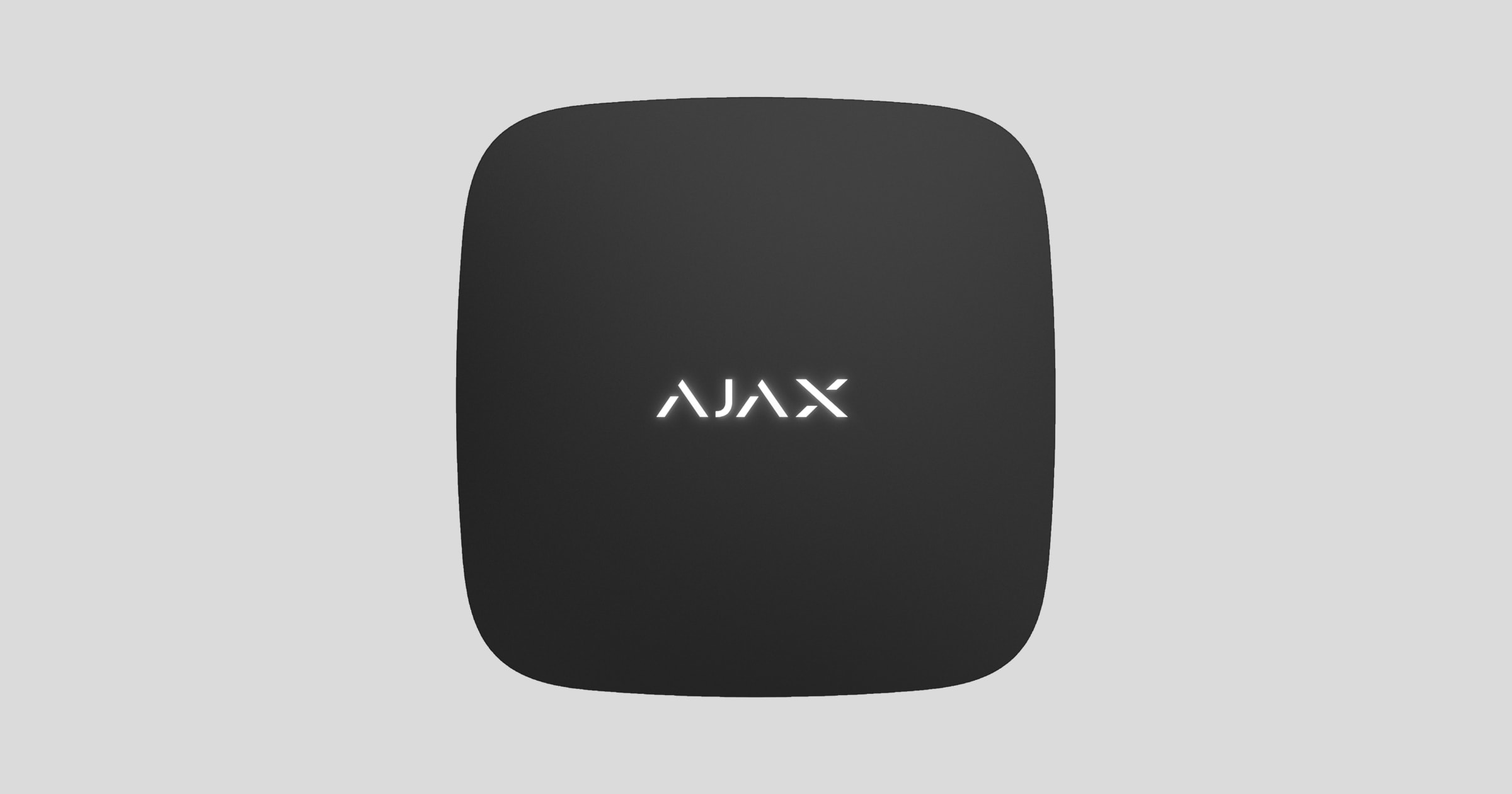
The compact LeaksProtect sensor detects even the smallest leaks, allowing you to take timely action to address the problem.
LeaksProtect operates within the Ajax security system by connecting via the Jewellery protocol to the Hub. The link range is up to 1300m in an unobstructed environment. Additionally, the device can be used with third-party central processing units via integrated uartBridge and ocBridge Plus modules.
The sensor device is set up via a mobile app for iOS and Android. Users will receive notifications about all events via push messages, SMS, and phone calls (if registered).
The Ajax security system is capable of operating independently, but users can still link the system to the main monitoring centers of security companies.
👉 Buy LeaksProtect water leak sensors now!
Features and details
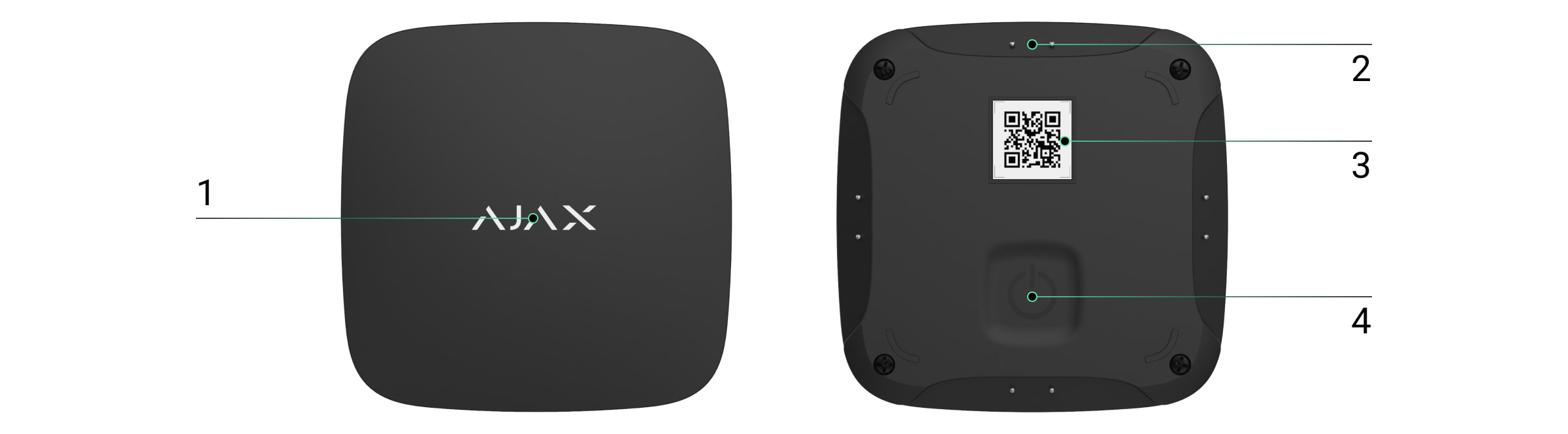
-
Traffic lights
-
Humidity sensor head
-
QR Code
-
On/off switch
How LeaksProtect works
LeaksProtect has contacts on the underside of the device that are sensitive to water leaks – if at least one pair of contacts gets wet, the device will immediately send an alarm signal to the Hub, notifying the user and the security company. Additionally, it will notify when the location is dry.
The detector is always active and sends alarms regardless of the system status: activated or deactivated.
When a water leak is detected, LeaksProtect issues a notification, and a subsequent alert is only triggered after the contacts have dried and become wet again.
Connect the device to the Ajax security system.
Connect the sensor to the Hub.
Before starting the connection:
-
Install the Ajax app on your phone and follow the instructions to set up the Hub (Hub, Hub Plus).
-
Create a user account, add the Hub to the app, and create at least one room.
-
Open the Ajax application.
-
Turn on the hub and check your internet connection.
-
Check and make sure that the Hub is in the Disabled mode and not updating (check the status displayed in the application).
⚠️ Only users with administrator privileges can add new devices to the Hub.
How to connect a device to the Hub:
-
Select “Add device” in the Ajax app.
-
Name the motion sensor device, scan the QR code or manually enter the device's code into the app (the code is located under the lid and on the box), and select the Room for the device.
-
Select “Add” - the countdown begins.
-
Turn on the device.
The device's power button is quite stiff – press firmly to turn it on.
For the device to function effectively and without interference, the sensor must be placed within the wireless coverage area of the Hub (with a protective object).
A request to connect to the Hub will be sent shortly after the device is powered on. If you are unable to connect to the Hub, try turning the device off and on again after 5 seconds.
If the device is already connected to another Hub, turn it off and restart the pairing process.
Once connected, the sensor device will appear in the list of connected devices. The frequency of signal scanning will depend on the settings on the Hub, with a default of 36 seconds.
Connect the sensor device to third-party security systems.
To connect the sensor to third-party central processing units, you can use the integrated Ajax uartBridge or Ajax ocBridge Plus module, following the instructions in the product manual.
The device is always active. When connecting LeaksProtect to third-party security systems, the device should be placed permanently within the active protection zone.
Device states
Devices → Leaks Protect
|
Category |
Content |
|
Temperature |
Temperature of the sensor device. Measured on the microprocessor and updated continuously. |
|
Signal strength |
Signal strength of the connection between the Hub and the sensor device. |
|
Battery level |
The remaining battery level of the device is displayed in 25% increments. |
|
Lid |
The device's anti-tampering mechanism reacts when the device is removed from its installation location or the housing is damaged. |
|
Connect |
Connection status between the hub and the device |
|
Leak detected. |
An alarm sounds when the sensor detects excessive humidity. |
|
Software |
The device's software version |
|
Device ID |
Device unique identification ID |
Set up the device.
Devices → LeaksProtect → Settings [⚙️]
|
Function |
Content |
|
first line |
The device name can be customized. |
|
Room |
Select the room where you want to add the device. |
|
The alarm sounds when there is rust. |
If activated, the HomeSiren and StreetSiren alarms will sound when water leaks are detected. |
|
Check the wave intensity. |
Switch the device to signal strength testing mode. |
|
Check for decline |
Switch the device to attenuation test mode (only available on devices with software version 3.5 or higher). |
|
User manual |
Open the device's user manual. |
|
Unconnect the device. |
Disconnect the device from the hub and delete all settings. |
You can rename the device, change its room location, and remove it from the list of devices on the central hub.
Signal
The LeaksProtect indicator light may illuminate red or green depending on the device's status.
|
Event |
Signal |
|
Press the power button (the device will turn on). |
The light turns red when the button is pressed. |
|
Open it |
The green light illuminates when the device is turned on. |
|
Turn it off. |
The light turned red and then flashed three times. |
Once the device is turned on
|
Event |
Signal |
Note |
|
The device connects to the Hub, oDcBridge, and uartBridge. |
The light turns green for a few seconds. |
|
|
Hardware failure |
Flashing red continuously |
If your device needs repair, please contact customer service. |
|
Leak detected. |
The light turns red for about 1 second. |
|
|
The battery needs replacing. |
During an alarm, the device lights up red and then slowly dims. |
See the battery replacement instructions section for more information. |
Check the touch screen.
The Ajax security system allows for testing to assess the functionality of connected devices.
The testing modes will not start immediately but after a 36-second cycle when using the default settings. The start time of the test depends on the scanning cycle settings of the sensor device (see the “Jeweller” settings in the Hub settings).
-
Check signal strength
-
Check for decline
Equipment installation
Choose the installation location.
The optimal installation location for DoorProtect depends on the distance between the device and the central hub, as well as the number of obstacles in between that can degrade signal quality: walls, floors, large objects in the room, etc.
⚠️ Check the signal strength in the settings.
If the signal strength is only one bar, Ajax won't guarantee that the system will work perfectly. Do everything you can to improve the signal quality! At the very least, try moving the device; even just 20 cm can significantly improve the connection quality.
If, after moving, the device still has a weak or unstable signal, use a ReX signal booster.
Sensors should be placed in areas where water leaks from the water supply, heating, or wastewater systems are likely: on bathroom floors, under sinks, under washing machines, etc.
Do not install this device:
-
Outdoor area;
-
Keep away from metal objects or glass surfaces as this may affect the quality of the connection signal.
-
In areas where the temperature and humidity range of the device is exceeded.
-
On a conductive surface
Check the equipment
When the sensor contacts come into contact with liquid, the resistance between them decreases. To trigger the alarm, at least one pair of LeaksProtect contacts must be closed.
-
To test the water ingress detector, close the contact pair with a wet finger for 3 seconds (the delay will prevent any incorrect action). If water is detected, the detector LED will light up red for 1 second.
-
Wipe the contact points clean with a dry cloth - when the device detects that the water has dried, it will also turn on the red LED for 1 second.
If you submerge the device in soapy water, it may still continue to signal a flood after drying. The problem is the soap residue that clogs the contacts. To eliminate this issue, wipe the detector's contacts clean with a paper towel dampened with purified water and then dry them.
Equipment maintenance and battery replacement.
You should regularly check the functionality of the Ajax security system.
We recommend cleaning the connectors at least every 2-3 months. Using an alcohol-based cleaning solution is best.
Clean the machine body of dust, cobwebs, or other dirt. Use only a soft, dry cloth for maintenance.
Do not use cleaning agents containing alcohol, acetone, or gasoline to clean the device body.
The pre-installed battery ensures automatic operation for up to 5 years (with a central hub query frequency of 1 minute).
If the battery is detected to be low, the security system will send corresponding notifications, and the LED light will turn on and off if the detector detects any water leakage.
👉🏻 Instructions for replacing the battery
Technical specifications table
|
Bandwidth |
921mhz |
|
Maximum power |
Up to 20 mW |
|
Wireless module |
GFSK |
|
Link scope |
Up to 1,300 m (unobstructed view) |
|
Source |
2 x AAA batteries, 2V |
|
Battery life |
Up to 5 years |
|
Protection against dust and moisture |
IP65 |
|
Operating temperature range |
From 0°C to +50°C |
|
Operating humidity |
Up to 100% |
|
Size |
56 x 56 x 14 mm |
|
Mass |
40 g |
The complete set includes
-
LeaksProtect
-
AAA batteries (pre-installed) - 2 batteries
-
User manual
Guarantee
The product comes with a 2-year manufacturer's warranty.
If the device is not working as designed, please contact our technical support team before sending it in for warranty service – as over 50% of cases are simply issues with settings adjustments.