
SpaceControl - User Guide
INSTRUCTIONS FOR USE SpaceControl SpaceControl is a miniature, key-like remote control that allows you to control security systems from a distance of up to 1300 meters in an unobstructed environment.

Instructions for using SpaceControl
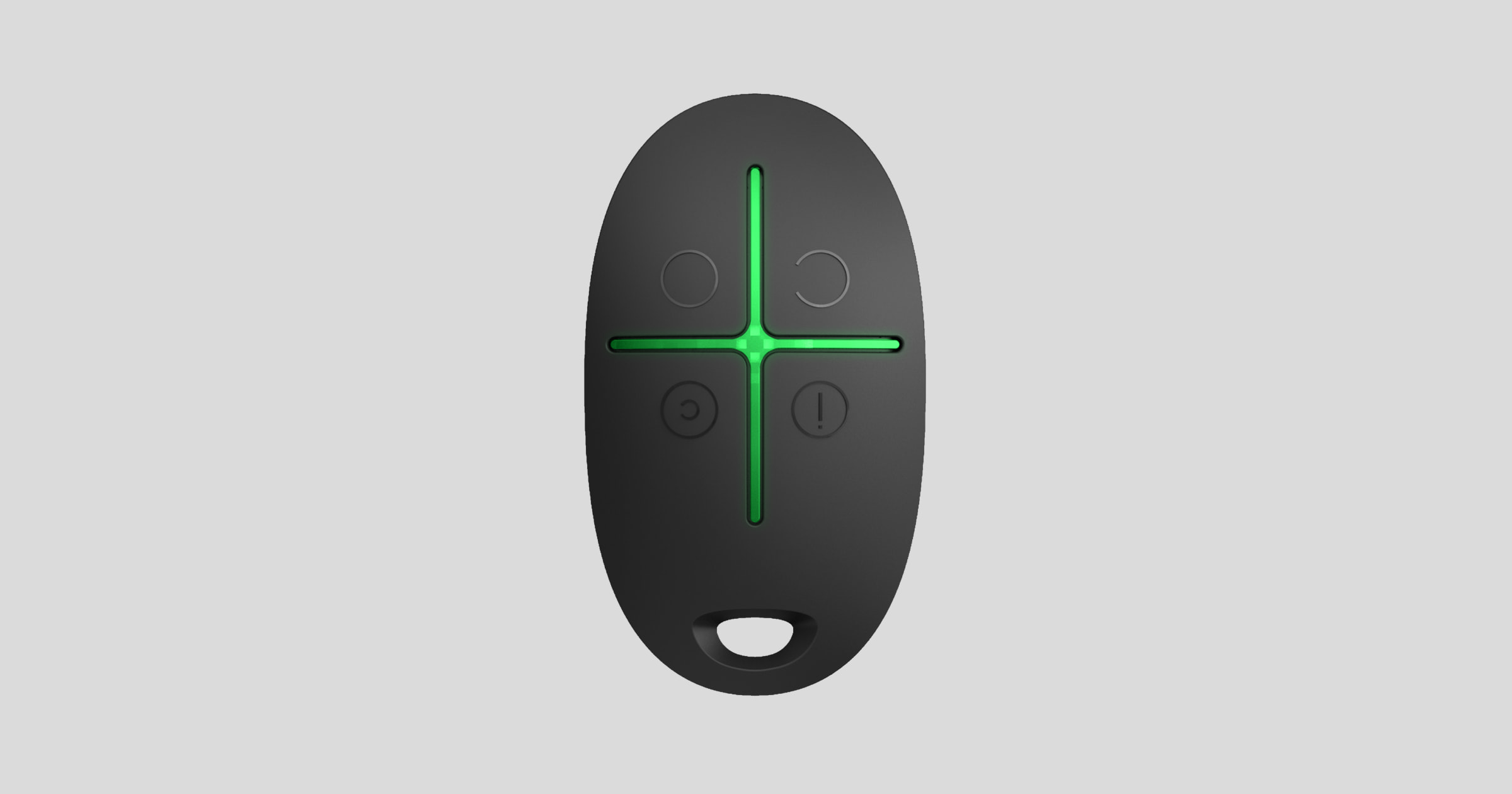
SpaceControl is a miniature, key-like remote control that allows you to control security systems from a distance of up to 1300 meters in an unobstructed environment. It can set the Ajax security system to activate, deactivate, night mode, and trigger an emergency alarm.
Because this is two-way communication, you will know whether the system received the SpaceControl command or not.
Operating as part of the Ajax security system, the key is connected to the Hub via a protected Jeweller protocol. Additionally, the key can be used to control any third-party security hub unit via the integrated uartBridge or ocBridge Plus module.
The lock can be set up via a mobile app based on iOS and Android for smartphones or a web application.
The Ajax security system is capable of operating independently, but users can still connect it to a central monitoring system provided by a private security company.
Features of the components
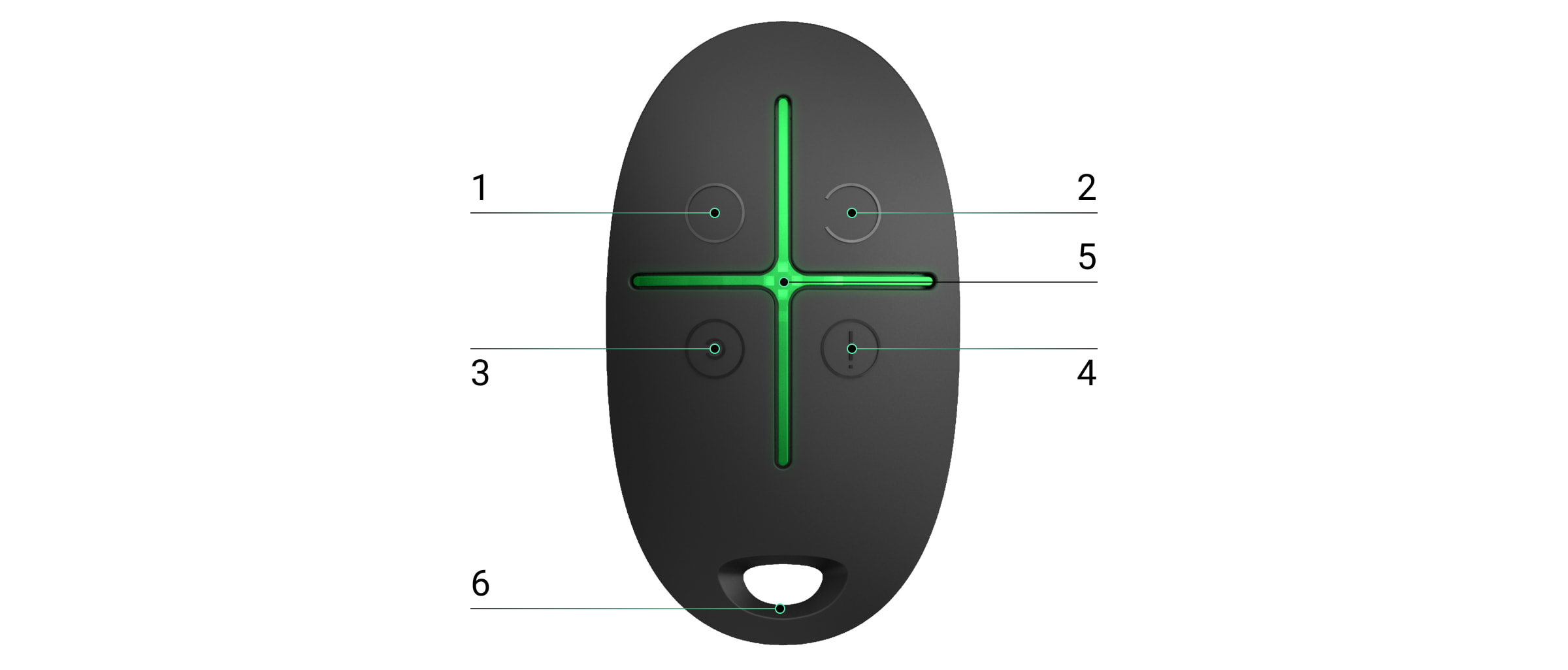
-
System activation button
-
System deactivation button
-
Night mode button
-
Emergency alarm button (activates the alarm)
-
Traffic lights
-
Keyhole
Buttons can be assigned using keys with Hub and Ajax uartBridge. Currently, the ability to modify (and deactivate) the commands of key buttons when used with Ajax Hub is not available.
Use the control key.
The maximum distance between the lock and the hub is 1300 meters. This distance may be reduced by walls, floors, and other objects that obstruct signal transmission.
SpaceControl only works with one security system (Ajax or a third-party system via an integration module). If you connect the key to a new security system, it will stop interacting with the previous system. However, the key will not be automatically removed from the Hub's list of devices.
The control lock can:
-
Activate the system - press button (O) once.
-
Activate the system in night mode - press button (c) once.
-
To deactivate the system - press button (C) once.
-
Activate 1 alarm - press button (!) once
To deactivate an alarm system, press the Deactivate button © on the lock.
Signal meaning
Depending on the software version, the SpaceControl key's LED indicates its status with either red or green light.
The key only reports its state after any button is pressed.
|
Signal |
Meaning |
|
4 green LEDs flash 6 times |
The key is not registered with any system. |
|
The two green LEDs next to the pressed key will flash once. |
The keyword command has been sent to the central processor. |
|
The LED next to the button flashes green four times when pressed - this indicates the lock is using software version 3.16 or lower. The LED in the middle flashes red - when the lock is using software version 3.17 or higher. |
The command was not sent because the processor was too far away. |
|
The two LEDs next to the button that are pressed will flash green twice. Then all four LEDs will flash green six times. |
The lock has been removed from the security system. |
|
The LED in the middle flashes for a few seconds. |
Connect the lock to a security system. |
|
The central LED lights up blue for about half a second when using software version 3.18 or later. |
The system has executed the lock command. |
|
The central LED lights up red for about half a second when using software version 3.18 or later. |
The system has not executed the lock command - integrity verification is enabled in the system and one of the devices is faulty. |
|
After the main indicator, the central LED lights up green once and gradually turns off when using the key with software version 3.16 or lower. After the main indicator, the central LED lights up red once and then fades off when using the lock with software version 3.18 or higher. |
The lock's main battery needs replacing. In this case, the lock commands have already been sent to the security system. |
|
The green light flashes continuously when using the lock with software version 3.16 or lower. The red light flashes continuously when using the lock with firmware versions 3.18 to 3.52. Keys with software version 3.53 or higher will not function when the battery charge is unacceptably low, will not communicate commands to the central unit, and will not provide LED notifications. |
The low battery charge level is unacceptable. The battery needs replacing. In this operating mode, keyword commands are not sent to the security system. |
Connect the remote control device to the Ajax security system.
Before starting the connection:
-
Install the Ajax app on your phone and follow the instructions to set up the Hub (Hub, Hub Plus).
-
Create a user account, add the Hub to the app, and create at least one room.
-
Open the Ajax application.
-
Turn on the hub and check your internet connection.
-
Check and make sure that the Hub is in the Disabled mode and not updating (check the status displayed in the application).
⚠️ Only users with administrator privileges can add new devices to the Hub.
How to connect a device to the Hub:
-
Select “Add device” in the Ajax app.
-
Name the motion sensor device, scan the QR code or manually enter the device's code into the app (the code is located under the lid and on the box), and select the Room for the device.
-
Select “Add” — the countdown will begin.
-
Press both the Activation (o) and Emergency Alarm (!) buttons simultaneously - the lock will flash the LED in the center. For the lock to function as intended, it must be used within the Hub's coverage area. A request to connect to the Hub will be sent a short time after the device is activated.
-
The control key connected to the Hub will appear in the list of connected devices in the app.
Connect the remote control to a third-party system.
To connect the device to a third-party system, you can use the uartBridge Ajax converter module or the ocBridge Plus Ajax converter module; follow the instructions for each module to connect.
Device states
Devices → SpaceControl
|
Content |
Value |
|
Battery capacity |
Battery capacity of the lock |
|
Emergency alarm button |
Status of the emergency alarm button |
|
Software |
The device's software version |
|
Device ID |
Unique device identification |
Set up the control key.
Devices → SpaceControl → Settings (⚙️)
|
Customize |
Content |
|
first line |
The device name can be customized. |
|
Room |
Select a room where the device is actually installed. |
|
Emergency alarm button |
Turn the emergency alarm button on/off. |
|
The alarm sounds when the emergency button is pressed. |
If activated, HomeSiren and StreetSiren will be triggered when the emergency alarm button is pressed. |
|
User manual |
Open the device's user manual. |
|
Unconnect the device. |
Disconnect the device from the hub and delete all settings. |
Equipment maintenance
You should regularly check the functionality of the Ajax security system.
Do not use cleaning agents containing alcohol, acetone, or gasoline to clean the equipment.
The built-in battery can ensure the lock operates for up to 5 years under normal conditions (one activation and one deactivation of the system per day). More frequent use may reduce battery life; you can monitor the battery level via the Ajax app.
The battery built into the lock is very sensitive to low temperatures; if the lock gets too cold, it may affect the battery level indicator on the app until the lock warms up again.
👆🏻 The battery level is not updated regularly, but only after pressing one of the buttons on the lock keypad.
When the battery is low, users will receive a notification in the Ajax application, and the LED on the key will slowly light up and turn off red each time a button is pressed (keys with software version 3.16 and older will light up green).
👉🏻 Instructions for replacing the battery
The complete set includes
-
SpaceControl
-
CR2032 battery (Pre-installed)
-
User manual
Technical specifications
|
Number of buttons |
4 |
|
Emergency alarm button |
Have |
|
frequency band |
868.0 – 868.6 MHz or 868.7 – 869.2 MHz |
|
Operating power |
6.01 dBm / 3.99 mW (20 mW limit) |
|
Wireless signal module |
GFSK |
|
Signal range |
Up to 1,300 m (Unobstructed environment) |
|
Source |
1 CR2032A battery, 3V |
|
Operating hours |
Up to 5 years (depending on frequency of use) |
|
Operating temperature |
For Ukraine and West African countries From -10°C to 40°C Other countries: From -25°C to +50°C |
|
Humidity |
Up to 95% |
|
Size |
65 x 37 x 10 mm |
|
Mass |
13 g |
Guarantee
The product comes with a 2-year manufacturer's warranty.
If the device is not working as designed, please contact our technical support team before sending it in for warranty service – as over 50% of cases are simply issues with settings adjustments.